
Optimising Full Text Access
This page provides guidance on configuring EndNote 21 to maximise access to full-text resources through the CHS Library’s collections. It covers how to apply library-specific settings to streamline your research and improve access to full-text articles.
'Find Full Text' feature
The 'Find Full Text' feature in EndNote helps you automatically locate and download full-text PDFs for your references by searching online sources such as library subscriptions, open access repositories, and publisher websites. This streamlines the process of attaching full-text documents to your references.
Configuring 'Find Full Text'
- On the EndNote Edit menu, select Preferences
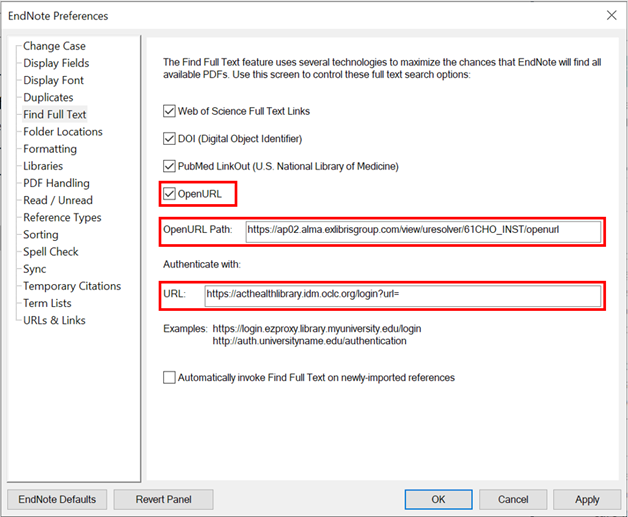
- Select Find Full-Text
- Tick the OpenURL checkbox
- OpenURL Path: https://ap02.alma.exlibrisgroup.com/view/uresolver/61CHO_INST/openurl
- Authenticate With: https://acthealthlibrary.idm.oclc.org/login?url=
- Select Apply, then Okay.
- (Optional) Tick Automatically invoke Find Full Text on newly imported references if you want EndNote to search for PDFs as soon as you add new references.
'OpenURL Link'
The 'Find Full Text' feature may not work with all publishers due to security restrictions. Providers such as EBSCO, JSTOR, Wiley and ScienceDirect may block automatic PDF downloads.
To access full-text articles from these sources, use the 'OpenURL Link' feature. This tool directs you to the article on the publisher’s website, where you can manually download the PDF and attach it to your EndNote reference.
- Select the reference in your EndNote library
- Right-click and choose OpenURL Link
- From the database or publisher’s site, download the PDF
- Save the PDF to your computer
- Attach the PDF to the reference in EndNote.
Crossref Connection File
Adding Crossref as a connection file in EndNote allows you to search for references directly from within the EndNote interface using DOIs or keywords. This streamlines the process of retrieving accurate citation data and ensures your references are complete and properly formatted, especially useful when importing articles that don’t come with full metadata.
- On left side pane in EndNote click the + symbol next to Online Search
- In the quick search dialogue box, type Crossref
- Select Crossref and click Choose
- In the left pane under Online Search, confirm that Crossref now appears.
To search using Crossref:
- Click Crossref under Online Search on left pane
- The Crossref search tab will display
- Enter a DOI or keyword in the search field, and click Search
- Select and import the relevant reference(s) into your library.